
Process employee salaries for a chosen month - in SIx steps.
Running payroll in PrimeHR takes six stages, and PrimeHR handles the calculations for you. You pick a period, choose who is included, confirm attendance, review the salary figures, and execute the run.
Create the payroll run: choose the month and year, and give the run a title.
Employees: select who is included in this run.
Attendance: review and calculate attendance for the selected period.
Salary: PrimeHR calculates salary for every selected employee.
Review: verify every figure before anything is paid.
Execute: click Run Payroll to process the salaries.
Once the run is executed, it appears automatically in Payroll Runs, with its own history and details.
How to Create a New Payroll Run
Step 1: Create the payroll run

Go to the Create New Payroll Run page.
Under Payroll Run Details, select the Month from the dropdown.
Select the Year from the dropdown.
Enter a Title for the payroll run, or click Suggest Title to generate one automatically.
(Optional) Add a Description with any notes about this run.
Click Create Payroll Run to save. To exit without saving, click Cancel.
The new run opens with the status Draft. A row of tabs across the top shows your progress: Employees, Attendance, Salary, Review and Execute.
Step 2: Select employees

After you create the run, you land on the Employees tab, Employee Selection. The Eligible Employees list shows everyone who can be included in this payroll run.
Each row shows the employee's name, code and email, department, designation, type (for example Permanent), joining date and status.
To select employees
Tick the checkbox next to each employee you want to include. To select everyone who matches your current filters, click Select all matching.
Check the counters under the filters: Selected, Eligible and Ineligible.
Click Proceed to Attendance.
Step 3: Attendance
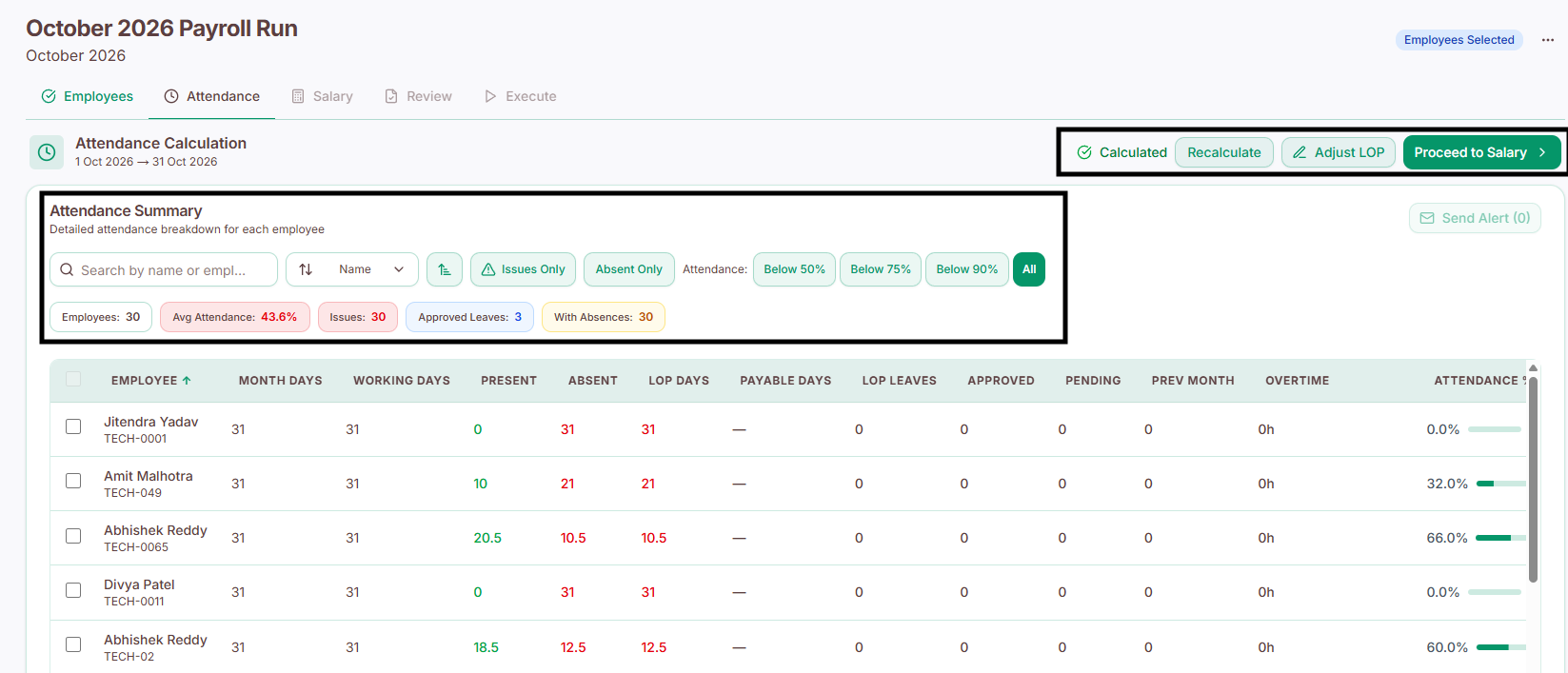
Salary depends on attendance, so PrimeHR asks you to confirm it before calculating pay. On the Attendance tab, review and calculate attendance for the selected period.
Open the Attendance tab (or click Proceed to Attendance from the Employees tab).
Review the attendance of the employees you selected for this month.
Calculate attendance for the period.
Move on to the Salary tab.
If you spot a mistake, fix the attendance record first and calculate again. The salary figures in the next step are based on this attendance.
Step 4: Salary calculation

On the Salary tab, PrimeHR calculates the pay of every selected employee from their salary structure and the attendance you confirmed. You do not need to calculate anything by hand.
For each employee, the calculation covers:
Component | Meaning |
Basic Salary | The employee's base pay for the period. |
Allowances | Additional fixed pay on top of basic salary. |
Bonuses | Bonuses recorded for the period. |
Incentives | Incentives recorded for the period. |
Deductions | Amounts deducted from the salary. |
Taxes | Tax deducted from the salary. |
Net Pay | The final amount the employee receives. |
Once the calculation is complete, continue to the Review tab.
Step 5: Review

The Review tab is your last check before money moves. Go through the payroll details of each employee and verify everything looks correct:
Basic Salary
Allowances
Bonuses
Incentives
Deductions
Taxes
Net Pay
Check in particular that the right employees are included, that attendance is reflected correctly, and that Net Pay looks right for each person. If something is wrong, go back to the relevant tab, correct it and review again. Proceed to Execute only when every figure is confirmed.
Step 6: Execute

On the Execute tab, click Run Payroll to process the salaries for the selected employees.
After the run is executed:
It appears automatically in Payroll > Payroll Runs.
It keeps its own history and details, so you can open it later to see what was processed.
The employees in this run are treated as paid for the month and will not be available for selection again in another run for the same month.