
Get notified automatically about tasks, approvals, and activities you shouldn't miss - daily, by email and push notification.
The Reminders module makes sure nothing important slips through the cracks. It automatically notifies you about pending tasks and approvals through email and push notifications, sent daily at a scheduled time (e.g., 8:00 AM), so you always know what's upcoming or overdue.
What you can do
Create custom reminders for important tasks
Get daily email and push notifications
Track pending and overdue activities
Search and filter reminders by status or type
Acknowledge reminders once reviewed
Dismiss reminders you no longer need
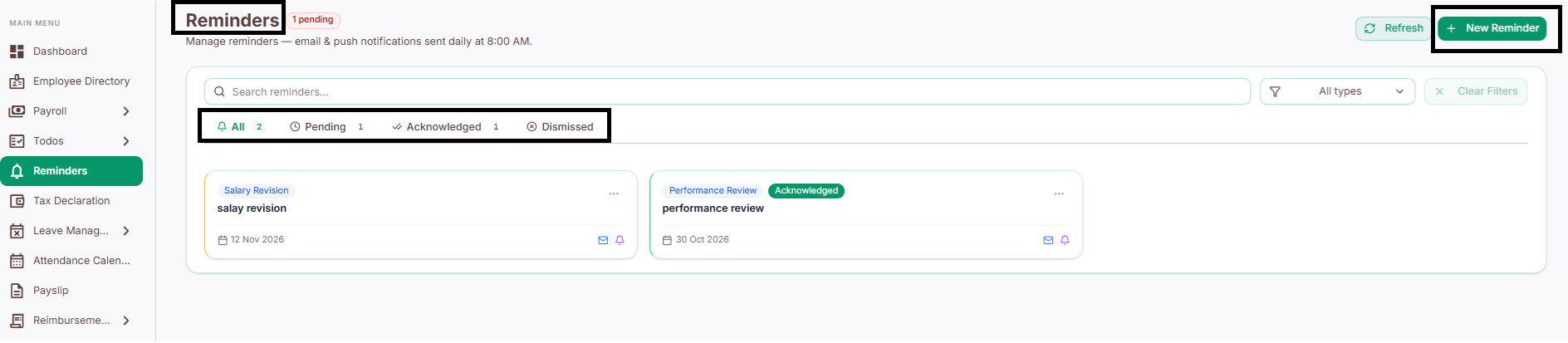
The four tabs
All
Every reminder you have, regardless of status - pending, acknowledged, or dismissed. Useful for a full overview or searching through reminder history.
Pending
Reminders still waiting on your action. Use this to spot what's urgent and catch anything overdue.
Acknowledged
Reminders you've already reviewed. Useful for confirming what you've seen - even if the actual task behind it is still in progress.
Dismissed
Reminders you've closed out. Handy for looking back at what you've cleared, and keeps your active list from getting cluttered.
How to create a reminder
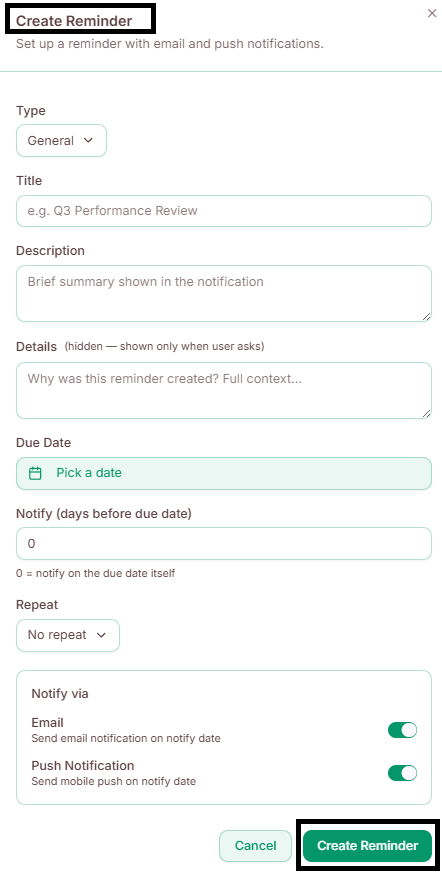
Go to Reminders.
Click New Reminder
Enter the reminder details - title, description, due date, etc.
Enable or disable Email Notifications and Push Notifications according to your preferences.
Click Save.
Your reminder will now appear in the relevant tab and notify you according to the daily schedule.
How to acknowledge or dismiss a reminder
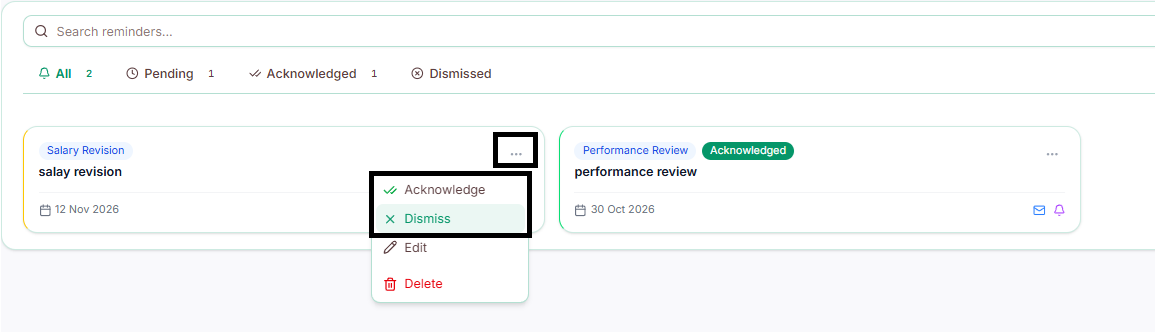
Open the reminder from any tab.
Review the details.
Click Acknowledge (if you've noted it, but the task isn't done yet) or Dismiss (if it's no longer relevant).